
Warning: Own dog food is eaten here!
Explaining an image CDN is not that simple.
Smaller images, meladies! Chosen per device, delivered from the edge! — this is the pitch, but the ladies at the market are not easily convinced. Hard to blame them, really: the proof lives in a dashboard nobody outside the account can see.
So, what would a shrewd vendor in an old-style street market do in those cases? It’s elementary, Watson. He’d set up a demo and let everyone see with their own eyes.
And this is pretty much what we decided to do here to showcase ImageEngine’s (and ImageEngine Kube’s) features. The fastest way to explain what an optimization engine does is to let people run one. And by people we mean everyone, from the expert to whoever needs to compress, convert, flip, rotate, or optimize images in a plethora of formats for a multitude of everyday situations.
We built Online Image Optimizer (onlineimageoptimizer.com) — drop a picture in and the byte count makes the argument. A few of the tools there run in your browser for usability purposes, but when the time to optimize and compress comes, that’s when ImageEngine steps in.
OIO is a tool for advanced users who want to see how good ImageEngine is at compressing and optimizing images, but also a handy tool for everyone else, the end users who might not be able to tell a bitmap from a JPEG, but who still have a problem to solve.
Note: Before you ask, OIO is a free website, no account, no watermark, no surprises waiting behind the Download button.
The OIO tools come in no particular order. You can consider it a Swiss Army knife for your everyday image manipulations. We’ll showcase the most interesting in this blog post, starting with the most technical use case, one that is dear to web developers who want to optimize their images for different browsing contexts.
The <picture> element, generated for you
Developers who take responsive images seriously already know the shape of the answer: several formats, several widths, and a picture element letting the browser choose. Knowing it and generating it are different amounts of work.
OIO makes it easy. Drop one photograph into the responsive image generator and it returns six versions — AVIF, WebP and JPEG, each at 1280 and 360 pixels.
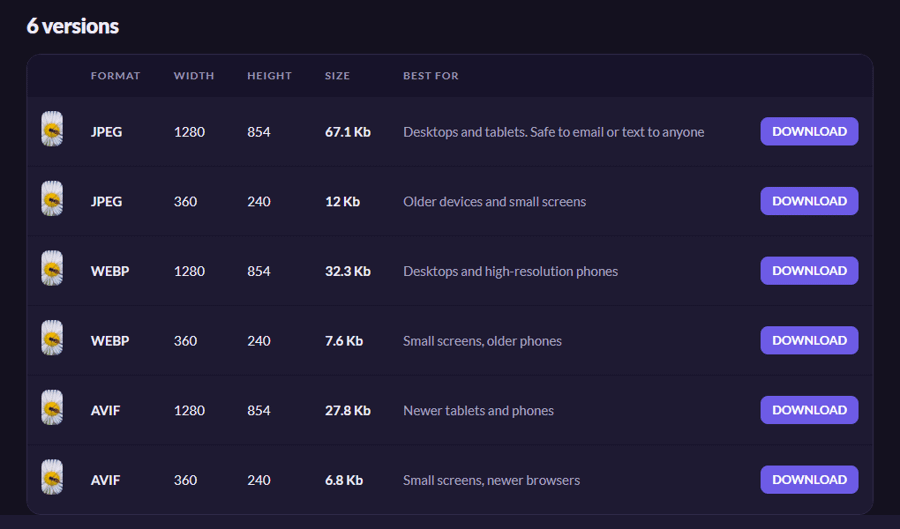
The files can be downloaded singularly or in one fell swoop as a .zip file.
And that’s not all. The page will also generate the markup snippets that you can copy and paste into your HTML:
Note: Let us pause for a second here. The power of ImageEngine — and its little brother, ImageEngine Kube, same engine, self-hosted, flat-rate — is that this resize magic happens automatically. Publishers and e-Commerce sites only need to handle one version of their images, a hi-res one typically. ImageEngine will retrieve that image and dynamically repurpose it in different shapes and formats for the browsers and devices that request it. The net result of small files served through a CDN is a blazingly fast website that visitors will love.
Other tools are more commonplace. They are the kind of situations that pop up when you don’t expect them and you think Bummer. I wish I had an app for that, and then you hit Google to see if someone has implemented it for you out there (and probably someone already has. We think we are doing it faster, more efficiently in terms of output file size, more generously in terms of accepted input file size, and with more respect for your privacy).
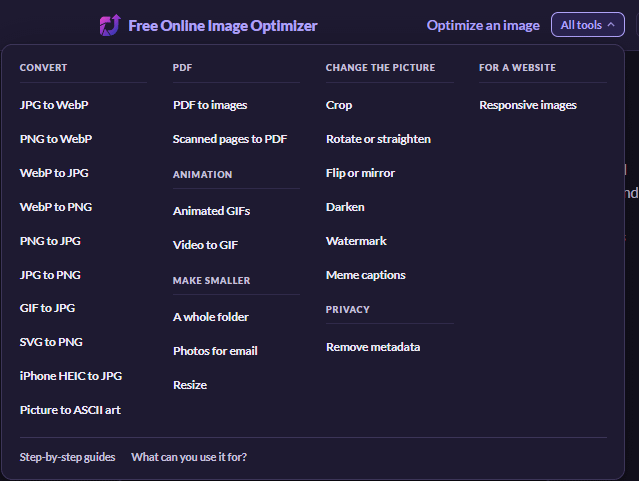
Figure: All the tools supported by OIO on September 12, 2026.
Apple, why art thou Apple?
Lots of people love their Macs, iPads and iPhones, but let’s be real, it’s not like the company that delivers those is exactly known for the enthusiasm with which they embrace standards. In fact, every occasion is good to come up with a new way of doing things.
Take a photograph on any iPhone made in the last several years and you get a HEIC file. Apple did not pick it capriciously. HEIC stores a better picture in roughly half the space of a JPEG, and on the phone it is invisible. Conversion happens automatically in a lot of cases without the user realizing. The trouble starts the moment the file leaves the iPhone’s file system (yes, Virginia, there is an Apple file system) and others need to open it on a non-Apple device.
Windows needs an add-on before Explorer will draw a thumbnail. A great many upload forms reject the extension outright. Chrome and Firefox decline to display one on every operating system, including Apple’s. The format is marvelous, but the world around it is not, which is why “why won’t this photo upload” is one of the most-searched image problems there is. The Online Image Optimizer can convert from HEIC to JPEG (or any other format) for you.
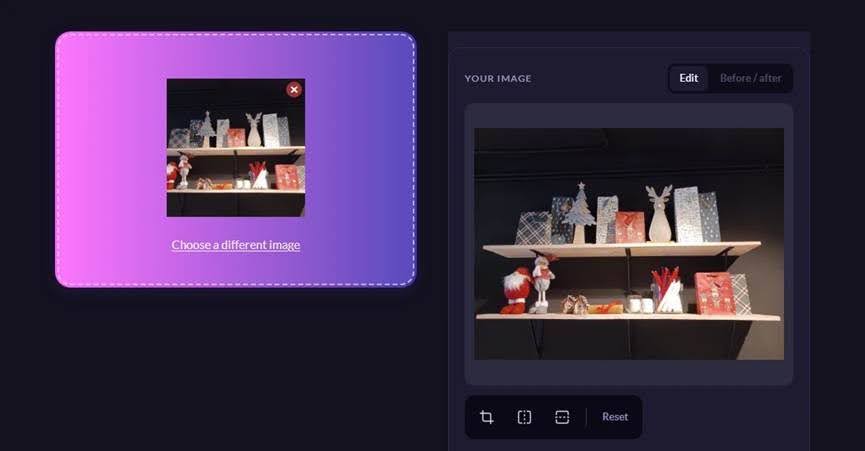
Figure: a 1.4 MB iPhone photograph, converted and on screen in a browser that cannot decode the format it arrived in.
Choosing the format, and proving it was worth it
A photograph straight off a camera: 4898 × 3265 pixels, 3,033,804 bytes. Resized to 1280 wide and asked for in each format the engine can produce:
| Format | Bytes | vs JPEG |
| AVIF | 47,401 | −56% |
| JPEG XL | 55,345 | −49% |
| WebP | 62,510 | −42% |
| JPEG | 107,951 | — |
Many iPhone files? No problem
One HEIC is annoying. Twenty of them are a workflow. OIO switches naturally into bulk mode: drop in up to 20 iPhone photos at once and let the engine convert and optimize the lot in one pass.
When it’s done, you can still download each image individually, but, more conveniently, OIO can package all the converted files into a single .zip.
SVG is wonderful. Until somebody asks for a PNG.
Web developers love SVG, and for good reason. It is resolution-independent, compact and perfectly suited to logos, icons and illustrations.
Unfortunately, the rest of the world did not get the memo.
There are CMSs, presentation programs, upload forms and assorted pieces of software that will look at your perfectly good SVG and demand a PNG instead.
This last bit is particularly handy with logos and simple artwork.
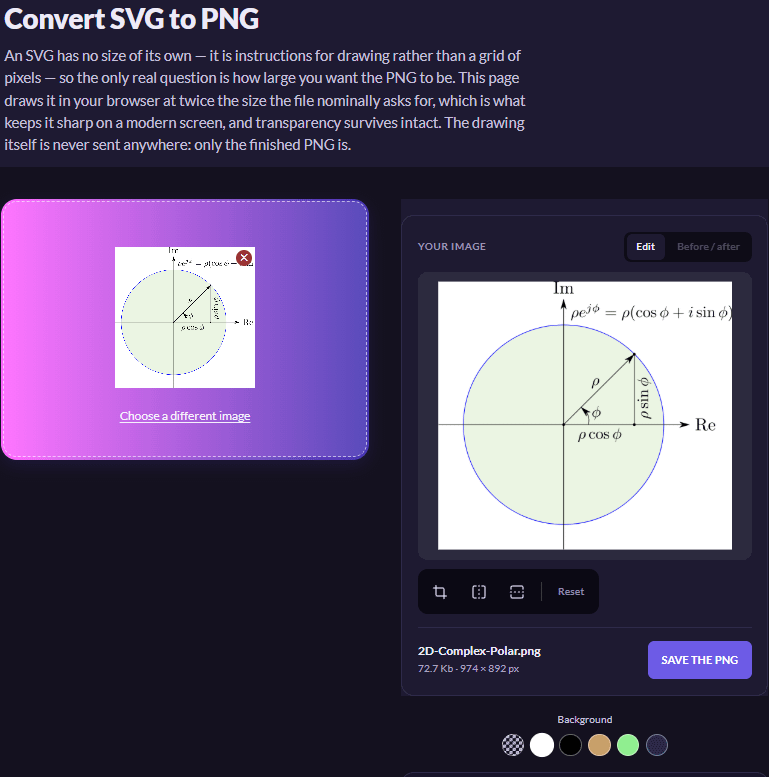
Figure: SVG to PNG in OIO, showing size and transparency controls.
Sometimes you don’t want the PDF. You want page seven.
PDF is another format that is marvellous until the destination refuses to accept it.
A marketplace wants an image. A CMS wants a JPEG. A messaging application will happily take a photograph but turns its nose up at a document.
Drop a PDF into OIO and it takes the document apart page by page. Each page is rendered as an optimized JPEG, in the proper order, and you can download either the whole lot as a ZIP or just the individual page you actually wanted in the first place. OIO currently handles up to 50 pages at a time.
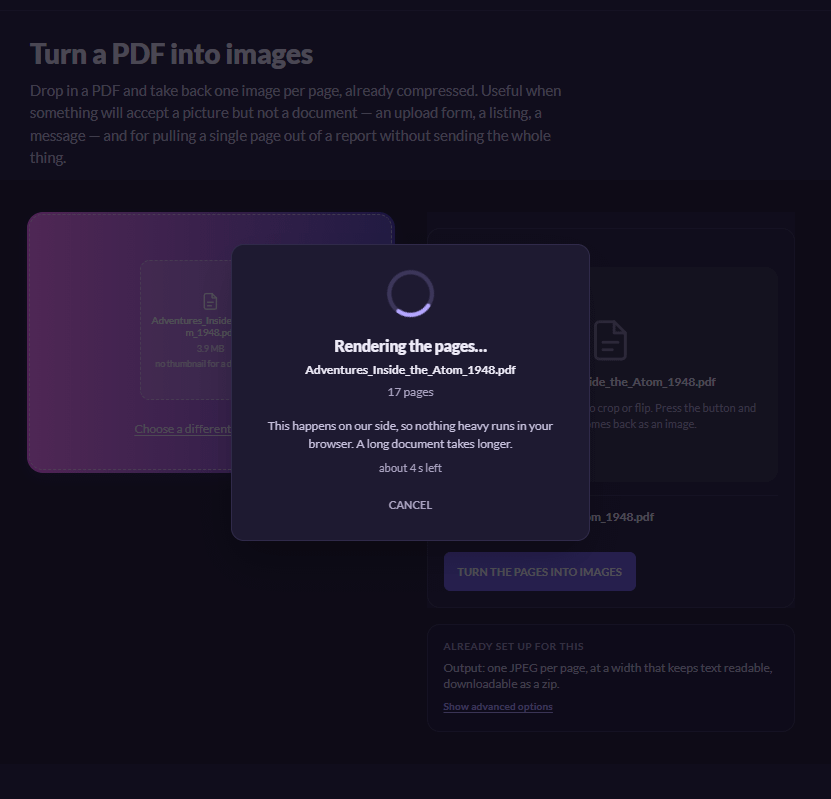
No screenshots. No opening the PDF viewer, zooming until page 7 looks vaguely right, pressing Print Screen and cropping the toolbar off afterwards.
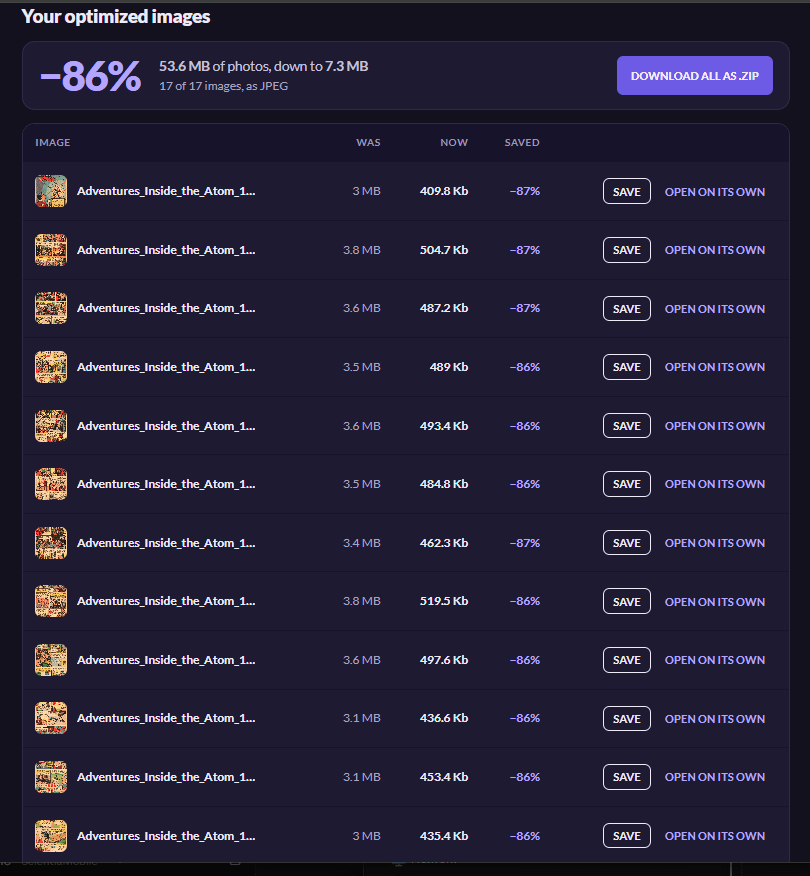
Figure: The PDF of an old American comics magazine is dropped into OIO, with individual page download buttons. On desktops, you can hover each thumbnail for a preview.

Figure: On desktops, you can hover each thumbnail for a preview of each page.
There is a reason we say take the PDF apart, incidentally. Once a page has become a JPEG, it is pixels. OIO renders at a resolution intended for comfortable on-screen reading.
Which leads us rather nicely to the opposite problem.
You signed a bunch of documents and you’d like to retain a copy
We have all done this. Somebody gives you six sheets of paper to sign. You sign them and you’d like a copy. There is no scanner around. Out comes the phone: click, click, click, click, click, click.
Congratulations, you now own six twelve-megapixel photographs of sheets of paper. That is technically a document in the same way that a pile of bricks is technically a house.
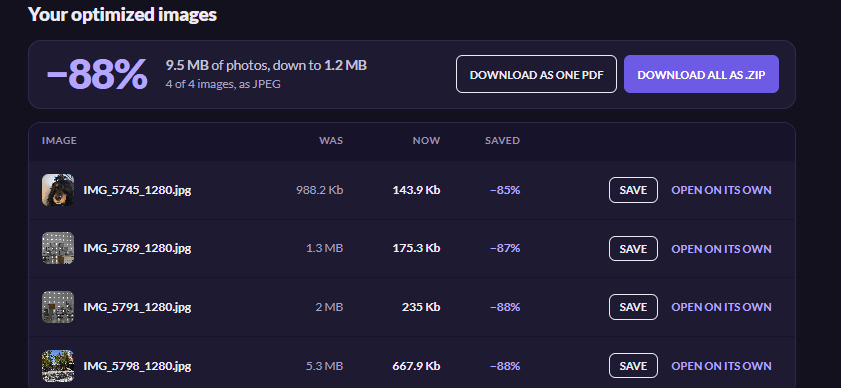
OIO treats photographed and scanned pages differently from ordinary photographs. The compression is deliberately more conservative because a little loss around somebody’s nose is invisible, while a little loss around an invoice number may not be. The site’s own example is representative: eight photographed pages can start around 30 MB and come back around the 1 MB mark while remaining readable.
And once the pages have been processed, OIO can assemble them and merge them into a single PDF.
Importantly, that PDF assembly happens in the browser. The optimized pages are already there; there is no reason to upload the whole thing again just to staple them together electronically.
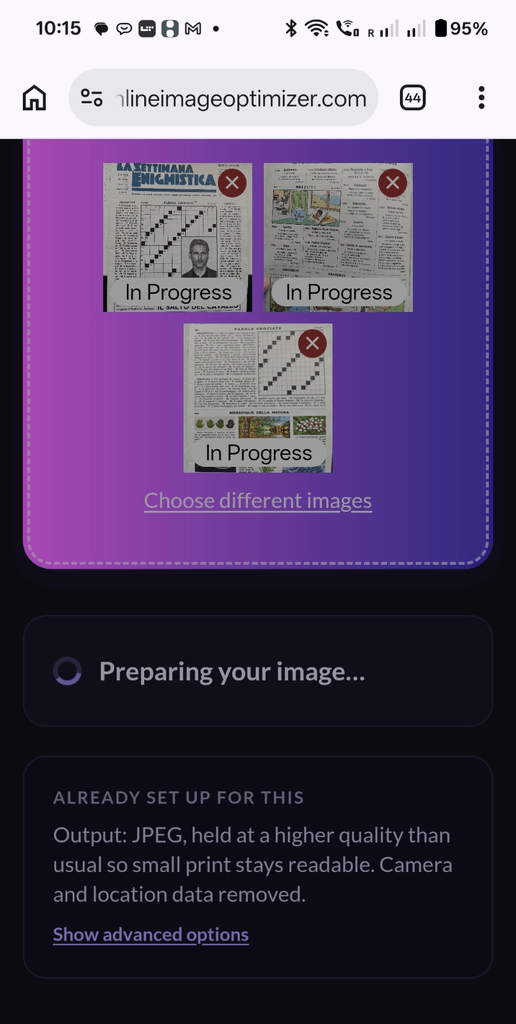
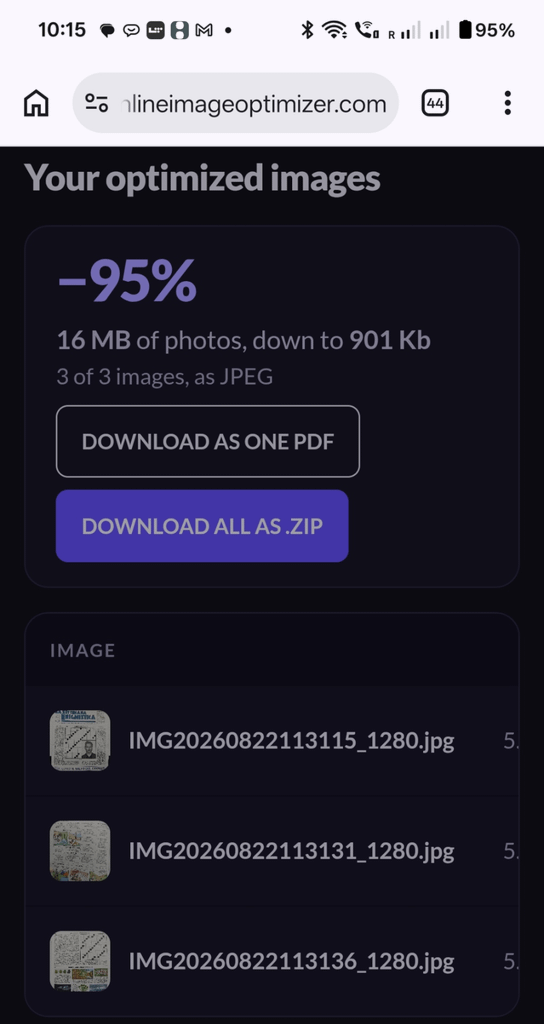
Figure: photographed document pages, optimized pages, Download as one PDF.
This is one of those features that may sound pedestrian until the day an insurance portal tells you that your eight-page attachment must be smaller than 5 MB.
At that point it suddenly becomes advanced technology.
GIF: a terrible format we somehow still love
And then there is GIF. GIF is almost comically bad at storing video. Modern video codecs spend an enormous amount of effort describing what changed between one frame and the next. GIF, bless its heart, essentially keeps drawing pictures. And yet GIF refuses to die.
It works everywhere, loops automatically, needs no player and is still perfect when what you want is three seconds of somebody rolling their eyes.

Figure: If you want a caption, you can add your own text before producing the final GIF.
There is a privacy bonus here too. The original video never goes to our servers. Your browser takes it apart locally and builds the animation; only the resulting GIF is sent off for optimization before it comes back to you.
Note: Yes, a GIF may well be several times larger than the MP4 that generated it. That is not a bug in OIO. That is GIF being GIF. If the destination accepts video, use video.
JPEG, PNG, WebP, AVIF… just make it the format I need
Then there is the great alphabet soup of image formats. JPEG, PNG, WebP, AVIF, JPEG XL, GIF, HEIC. Each exists for a reason. Each has situations in which it is a great choice. And each, inevitably, will one day be rejected by some piece of software you have no control over.
OIO handles the practical conversions between the common formats: JPEG to WebP, PNG to WebP, WebP back to JPEG or PNG, modern formats to old ones, old ones to modern ones, and so forth. The generic optimizer can output JPEG, PNG, WebP, AVIF, JPEG XL or GIF depending on what you actually need.
There is no ideological position here. If you have a WebP and Accounting’s ancient application only accepts JPEG, the correct format is JPEG.
If you have a PNG logo with transparency and want a smaller web asset, WebP or AVIF may make more sense.
If you have a JPEG and convert it to PNG, please understand that no little man inside OIO can reconstruct the information JPEG already threw away. You may get a larger file, but you will not get your lost pixels back.
Sometimes conversion means optimization. Sometimes it just means making the damn file work where you need it. Both are legitimate use cases.
Crop. Rotate. Flip. Resize. Move on with your life.
Not every image operation deserves Photoshop. Sometimes the photograph is sideways. Sometimes you need the left half. Sometimes the selfie is mirrored and the logo on your T-shirt now appears to have been designed by Leonardo da Vinci.
OIO handles the basic operations people routinely need before sending or publishing an image: crop an area, rotate in ninety-degree steps, flip left-to-right or top-to-bottom. The transformations happen thanks to a combination of browser and server action; the resulting image is then optimized on its way out.
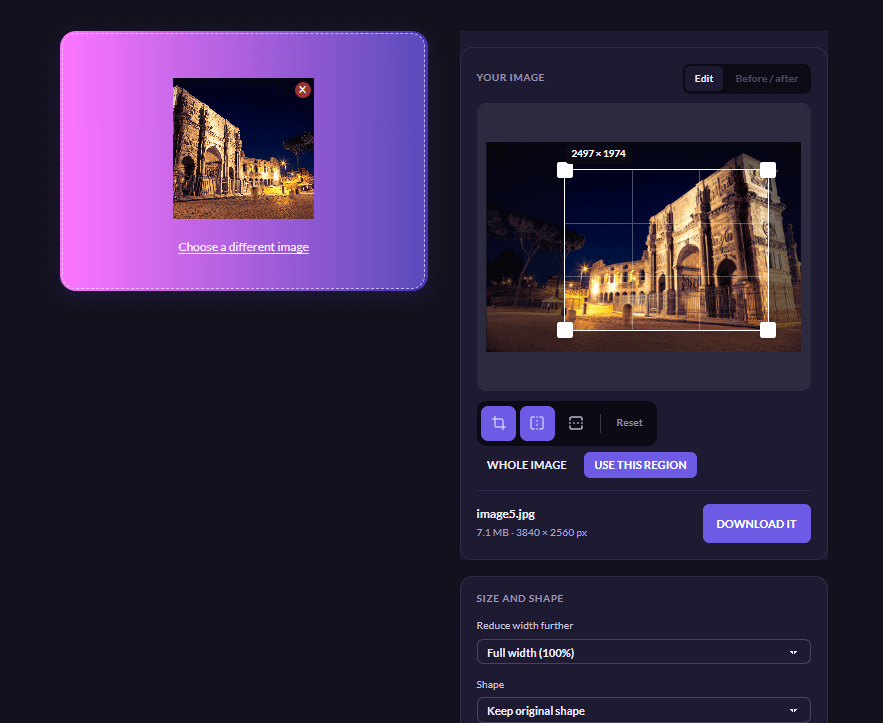
Figure: OIO editor showing crop/rotate/flip controls.
Again, no layers, brushes, healing tools or attempts to replace Photoshop. That is deliberately not what OIO is. It does the things you usually need five minutes before sending the file somewhere.
Can we turn a photograph into characters? The answer, unfortunately, is yes.
Drop an image into OIO and it can rebuild the picture as ASCII art. Dark areas get denser characters, light areas get thinner ones, and instead of an image you get a block of text that you can copy and paste.
Why?
Because README files exist. Terminals exist. Login banners exist. Chat systems that strip images exist.
But mostly because ASCII art is cool.
You can choose how many characters wide the result should be — forty may work in a chat window, a hundred gives a README more detail — and choose among different character sets. There is even a color mode for terminals that understand ANSI color sequences, although enabling it turns the result into a considerably larger wall of text.
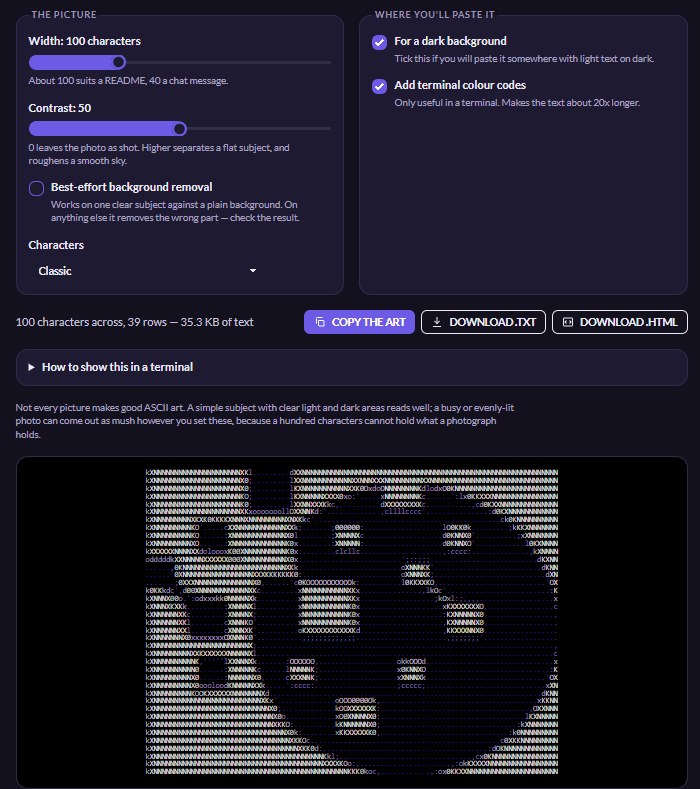
Figure: ImageEngine’s logo as an ASCII rendition.
A Swiss Army knife, with an engine inside
At first sight these tools may look like an eclectic collection. Responsive images. PDF pages. Scanned documents. GIFs. SVGs. Selfies. ASCII art. But there is actually a common thread.
Whenever an operation makes sense in the browser — cropping, flipping, rotating, assembling a PDF, taking a video apart — we try to do it there. And whenever a resulting image needs serious optimization and compression, ImageEngine is there to do what ImageEngine does.
That is also why OIO is a useful demo in a way that a benchmark page can never quite be.
Try Online Image Optimizer for Free: Need to quickly crop, convert, or compress an image without launching heavy software? Try the full toolset at onlineimageoptimizer.com—no account, no watermarks, and 100% free.